Transaction
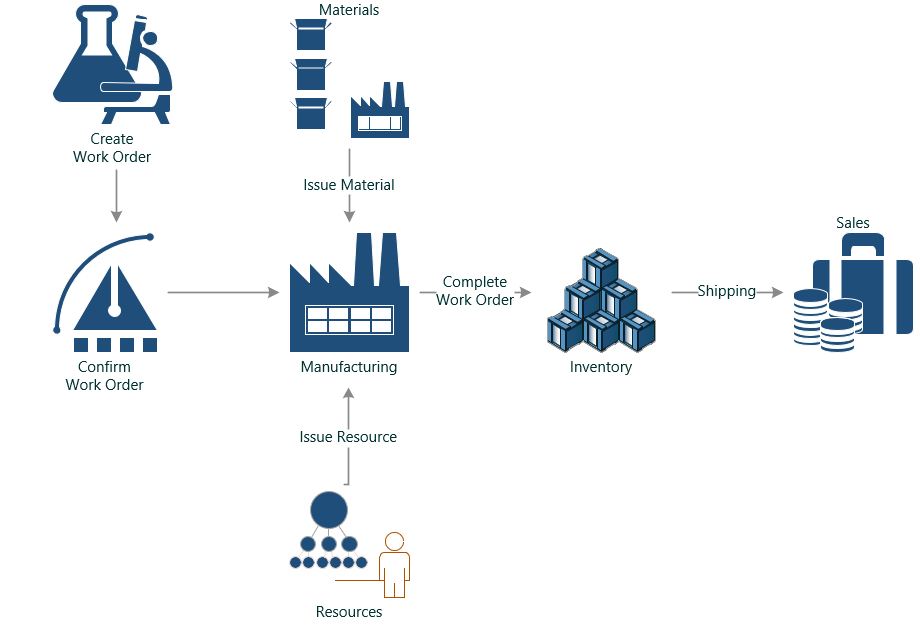
Manufacturing a product requires components and resources that use the components to build the product. inoERP provides several seeded manufacturing transactions to map and track the physical activities in the system. You can also define your own transaction types, journal profiles, and accounting profiles to map any unique process that is not industry standard.
Manufacturing transactions are create-only activities, i.e., You can only create these transactions; you cant update any of these transactions.
To correct any wrong transaction, create a reversal transaction ex: WIP Material Return, to rectify erroneous WIP Material Issue transactions.
Material Issue
A component issue transaction maps & tracks physically used components/materials during manufacturing processes. The transaction issues items from inventory to work orders to fulfill material requirements. Material issue reduces inventory on-hand and increases WIP valuation. You can use move transactions to issue materials to a work order automatically. You can set any component to be automatically consumed/ backflushed during move transaction by selecting the supply type to operation pull.
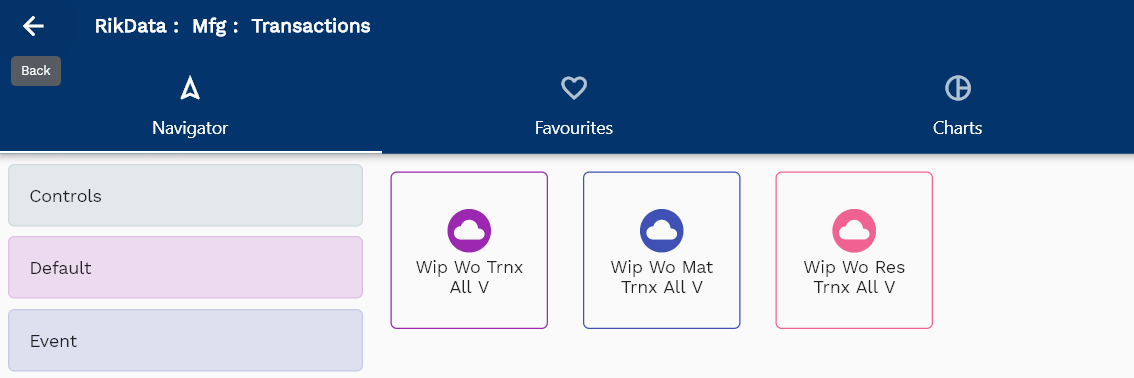
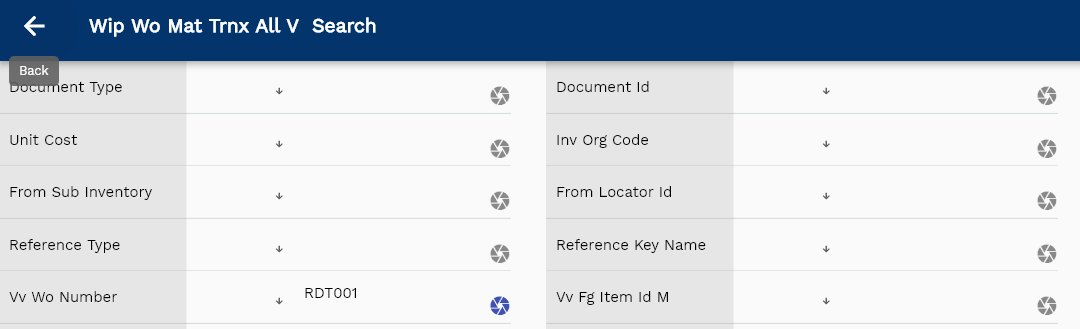
To issue material against a work order, navigate to the transaction search screen and then search the work order using the work order number or any other search criteria.
Click on the select icon next to the material you want to issue.
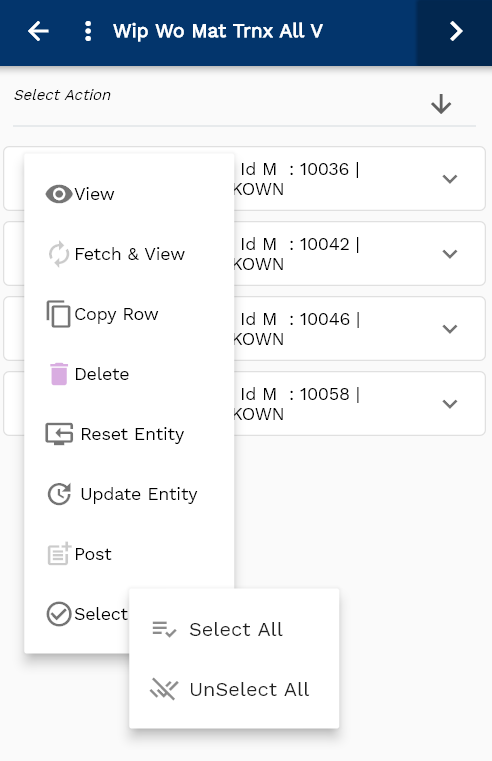
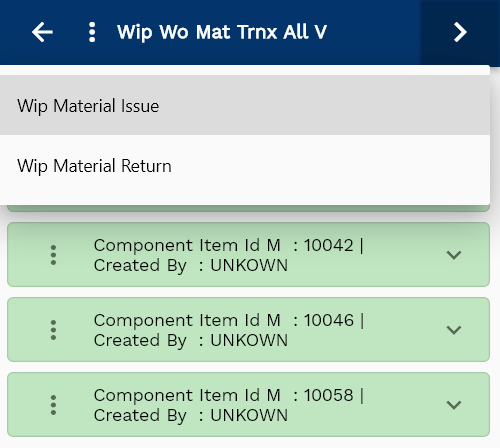
Select "WIP Material Issue" in the action list of values
The system will take you to the material transaction form and show you the details of all the items selected in the previous screen.
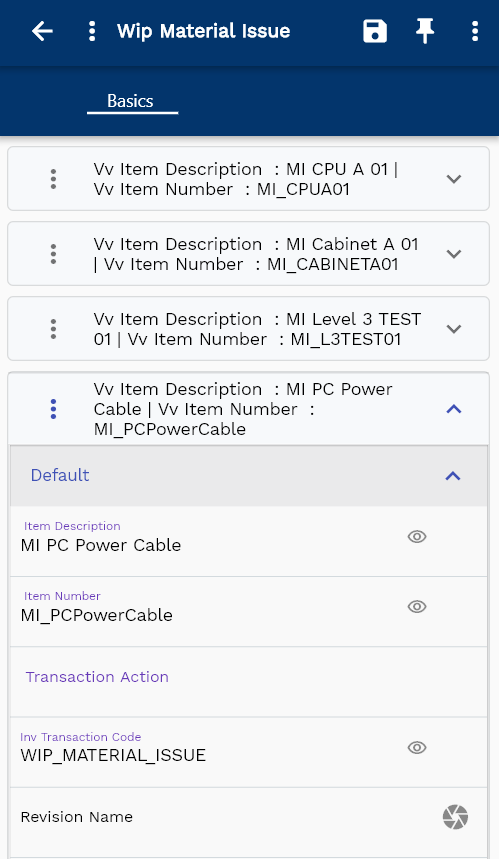
Click on the expand button to review the details of the material
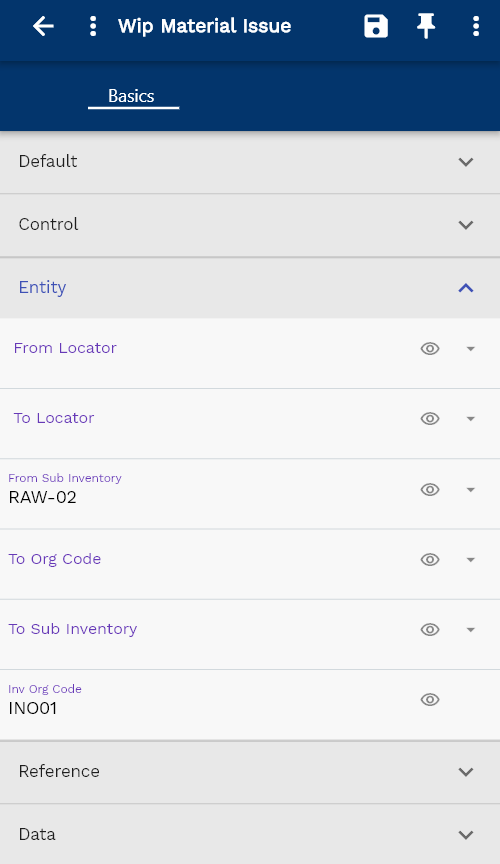
The transaction form rearranges itself depending upon the device screen.
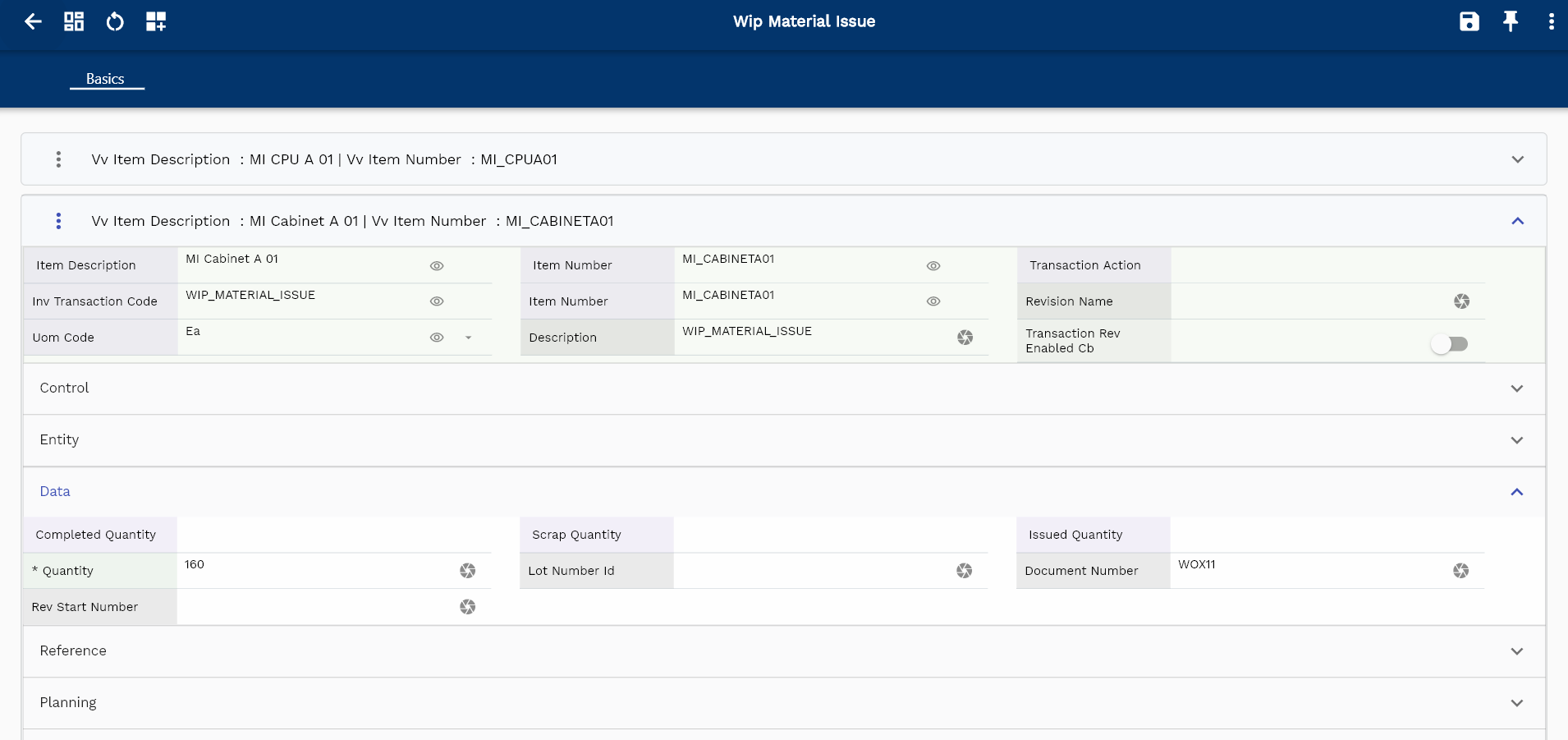
Enter the quantity you want to issue.
The system defaults the quantity field depending on the quantity required and the already issued quantity. However, it also allows you to override the value. You can allocate more/less quantity to a work order as per the actual usage of a component in a work order.
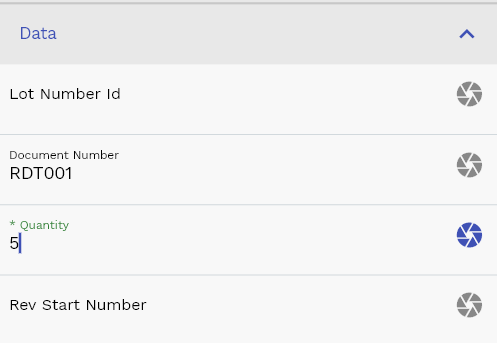
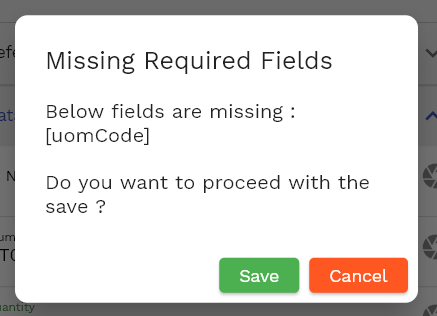
If you click on the save button without entering all the mandatory fields, the system will show the below error message.
Enter all the other details, and click on the Save button to complete the material issue transaction.

You can review all the completed transactions in the transaction view screen.
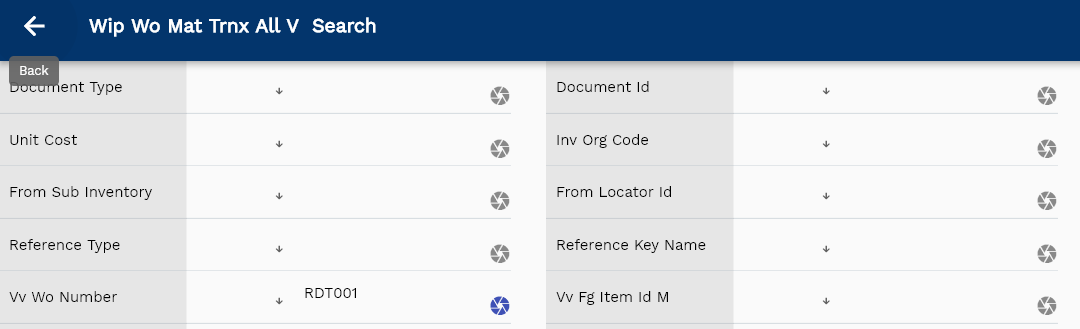
Navigate to the transaction search form, enter the work order number or any other criteria to search the transaction
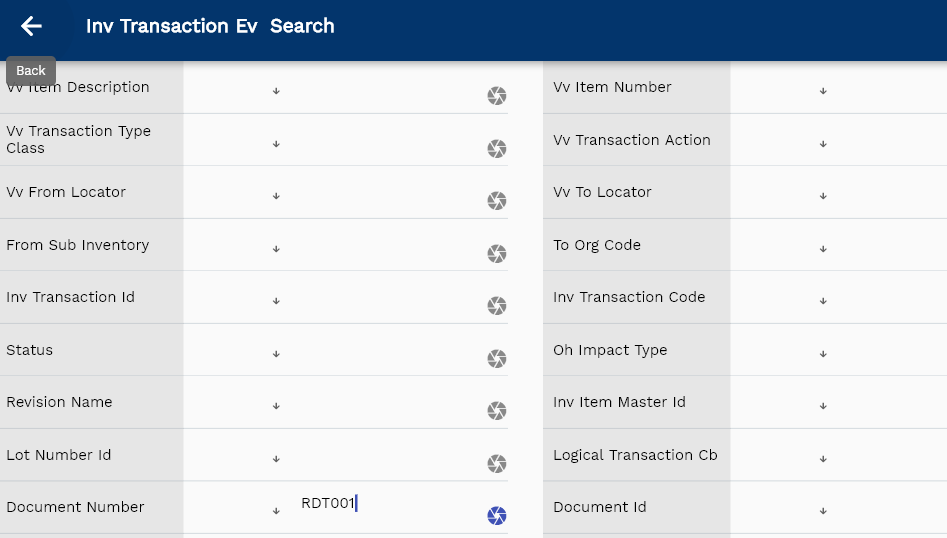
The system will show you the completed transaction.
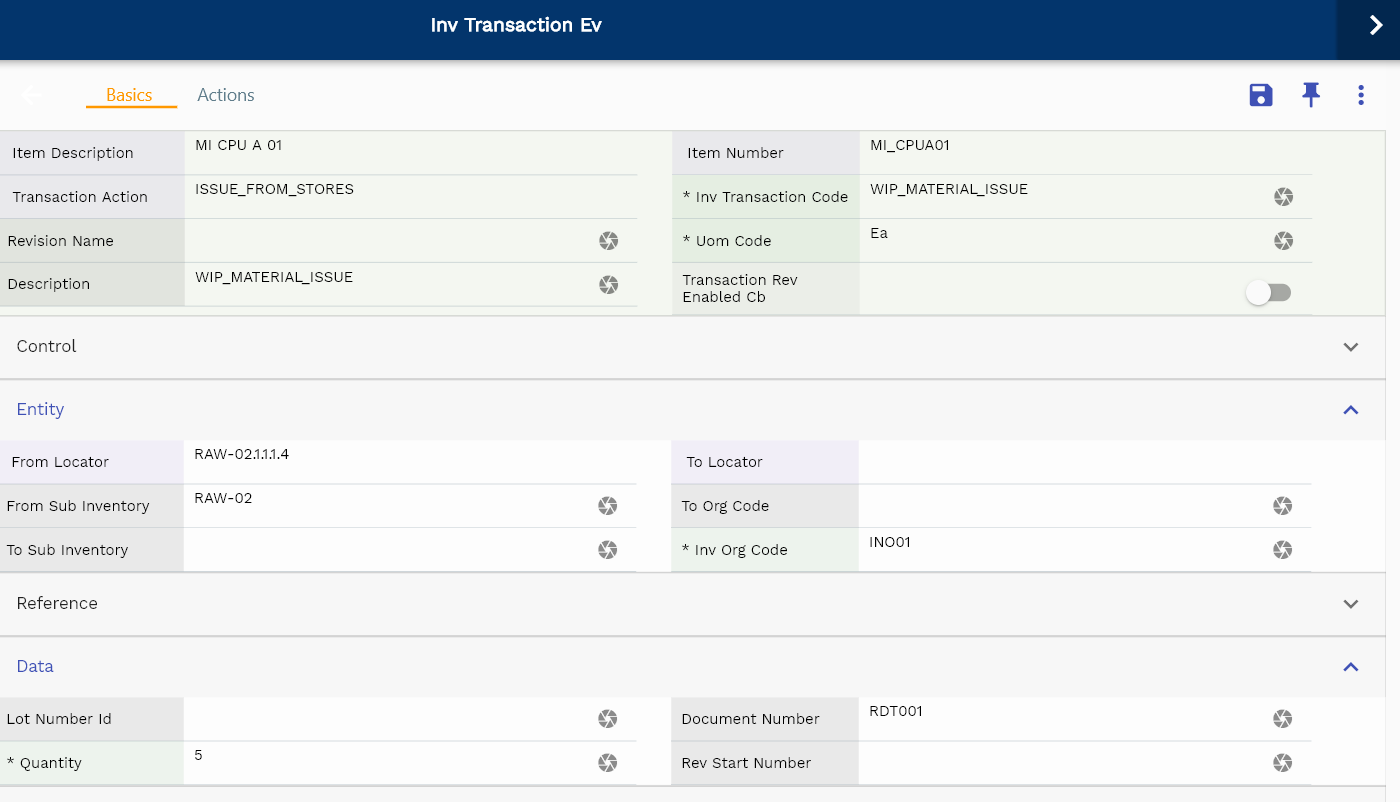
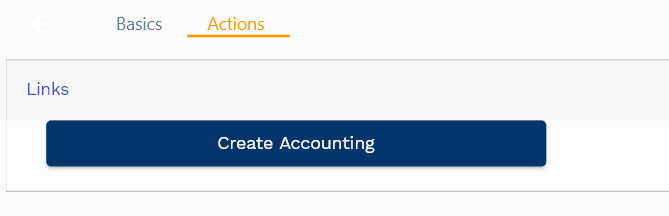
You can create journal entries for the transaction by navigating to the action tab. However, it's advisable to schedule the accounting program to run regularly.
Material Return
Material return is a reversal transaction for material issue transactions. You can use the transaction to correct any wrong material issue transaction. The transaction returns items from work orders to inventory. Material return increases inventory on-hand and reduces WIP valuation.
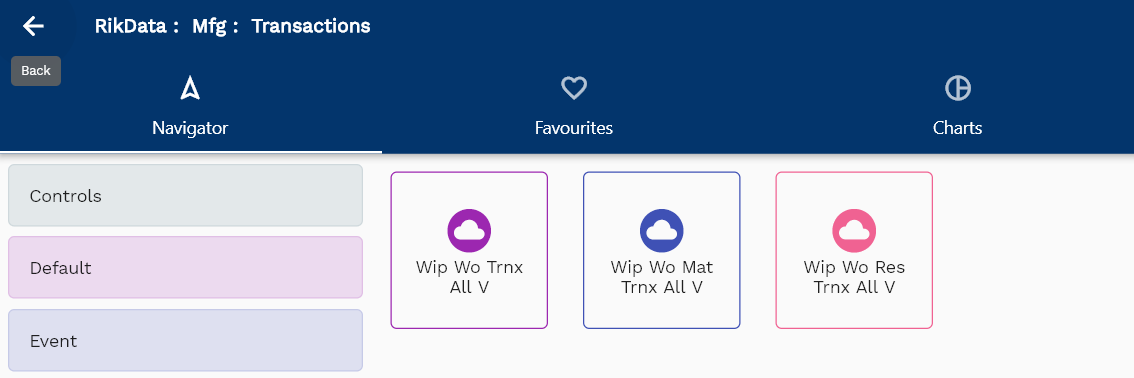
To issue material against a work order, navigate to the transaction search screen and then search the work order using the work order number or any other search criteria.
Click on the select icon next to the material you want to return.
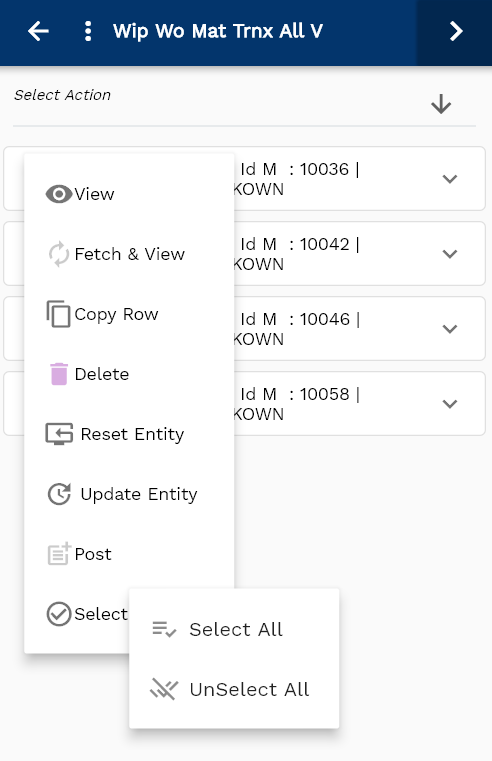
Select "WIP Material Return" in the action list of values
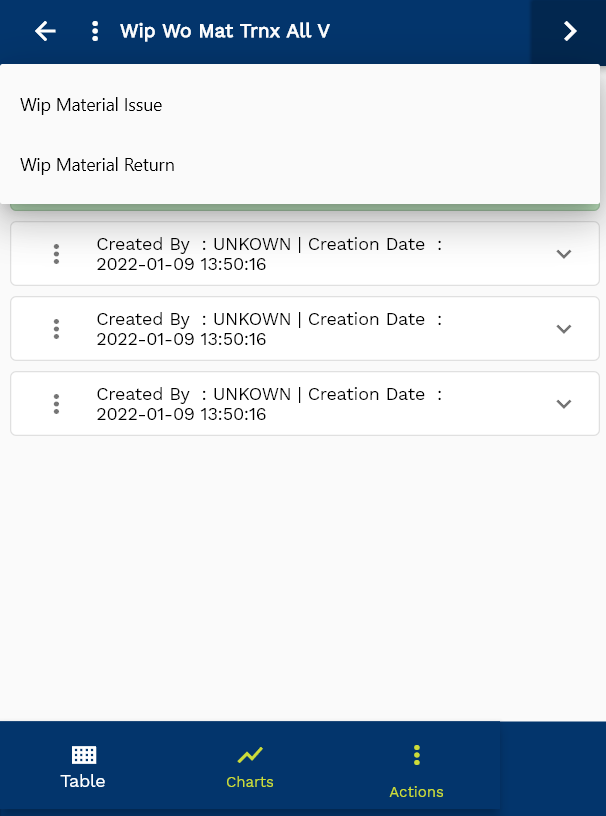
The system will take you to the material transaction form and show you the details of all the items selected in the previous screen.
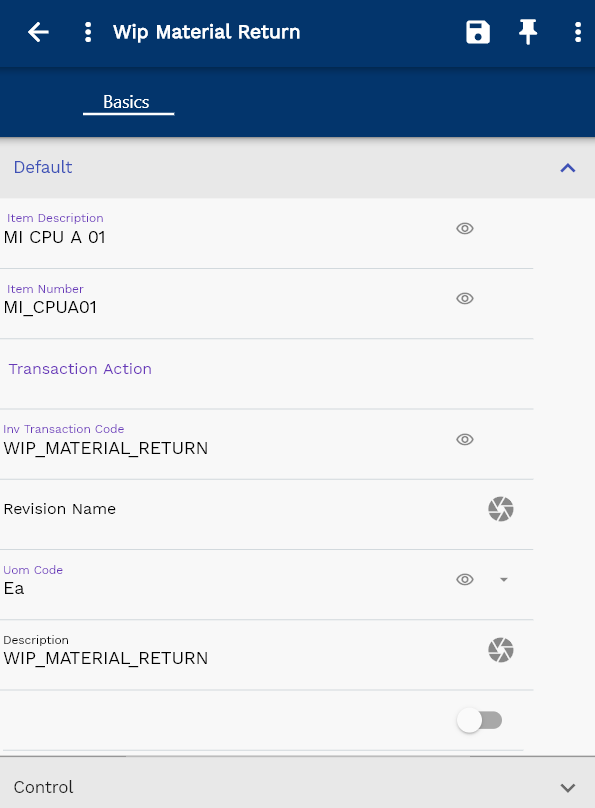
Click on the expand button to review the details of the material
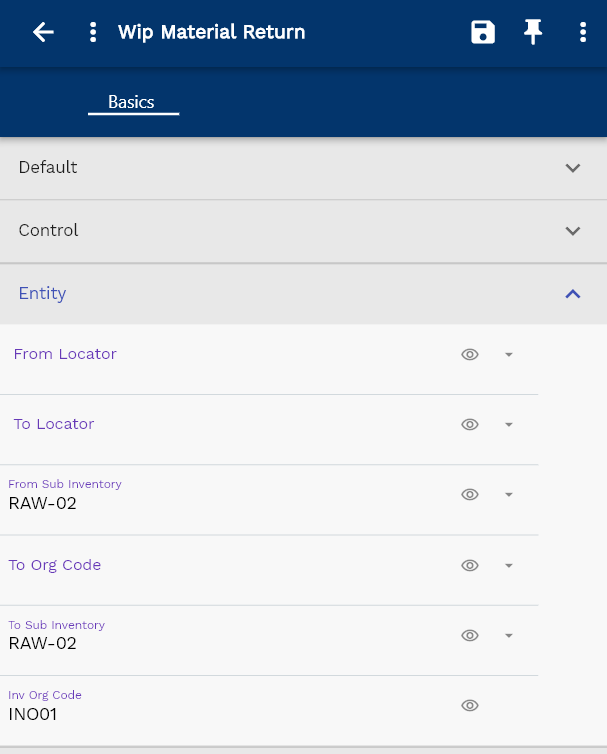
The transaction form rearranges itself depending upon the device screen.
Enter the quantity you want to return.
The system defaults the quantity field depending on the quantity required and the already issued quantity. However, it also allows you to override the value. You can allocate more/less quantity to a work order as per the actual usage of a component in a work order.
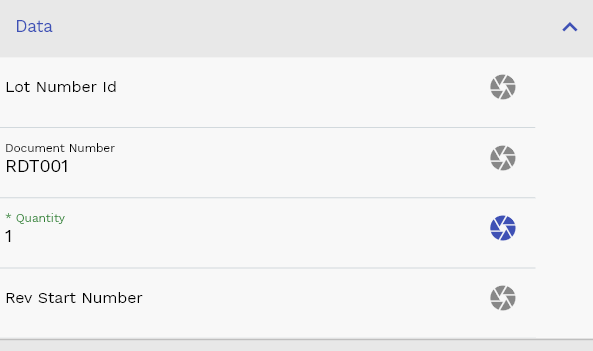
If you click on the save button without entering all the mandatory fields, the system will show the below error message.
Enter all the other details, and click on the Save button to complete the material issue transaction.
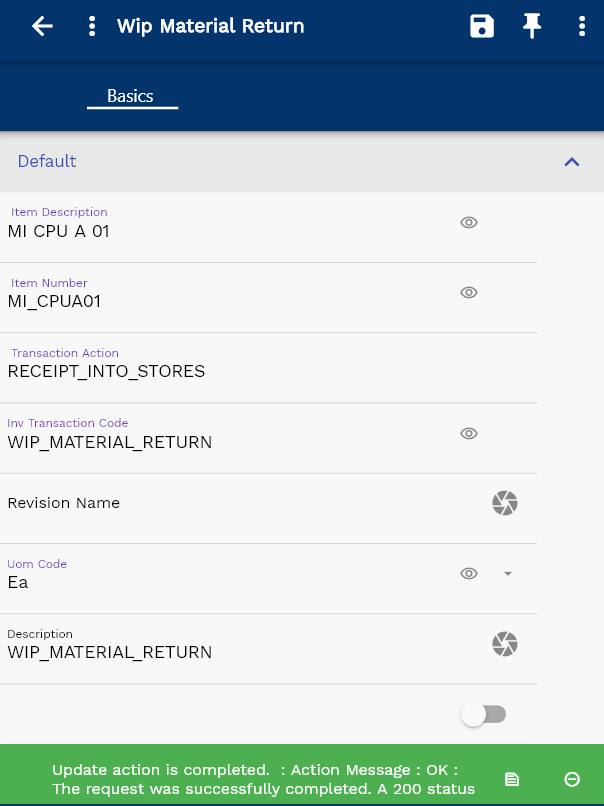
You can review all the completed transactions in the transaction view screen.
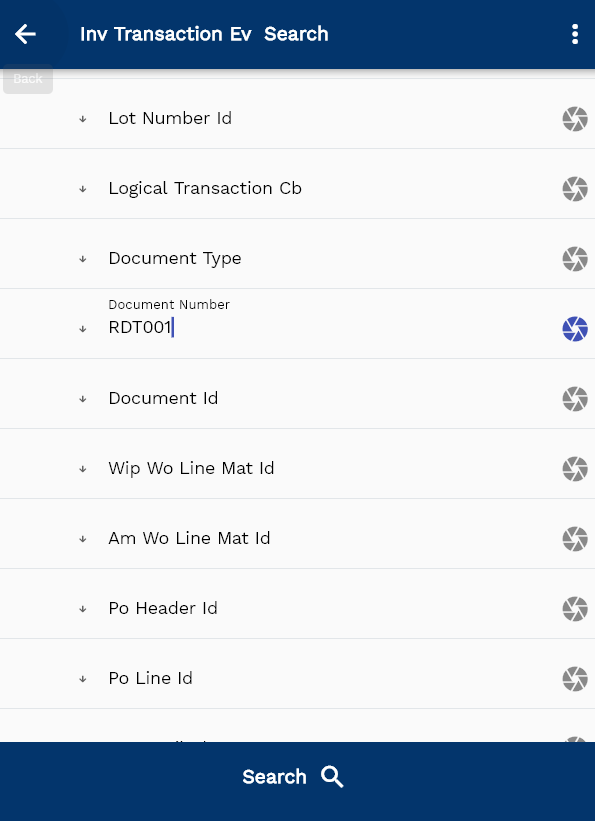
Navigate to the transaction search form, enter the work order number or any other criteria to search the transaction The system will show you the completed transaction.
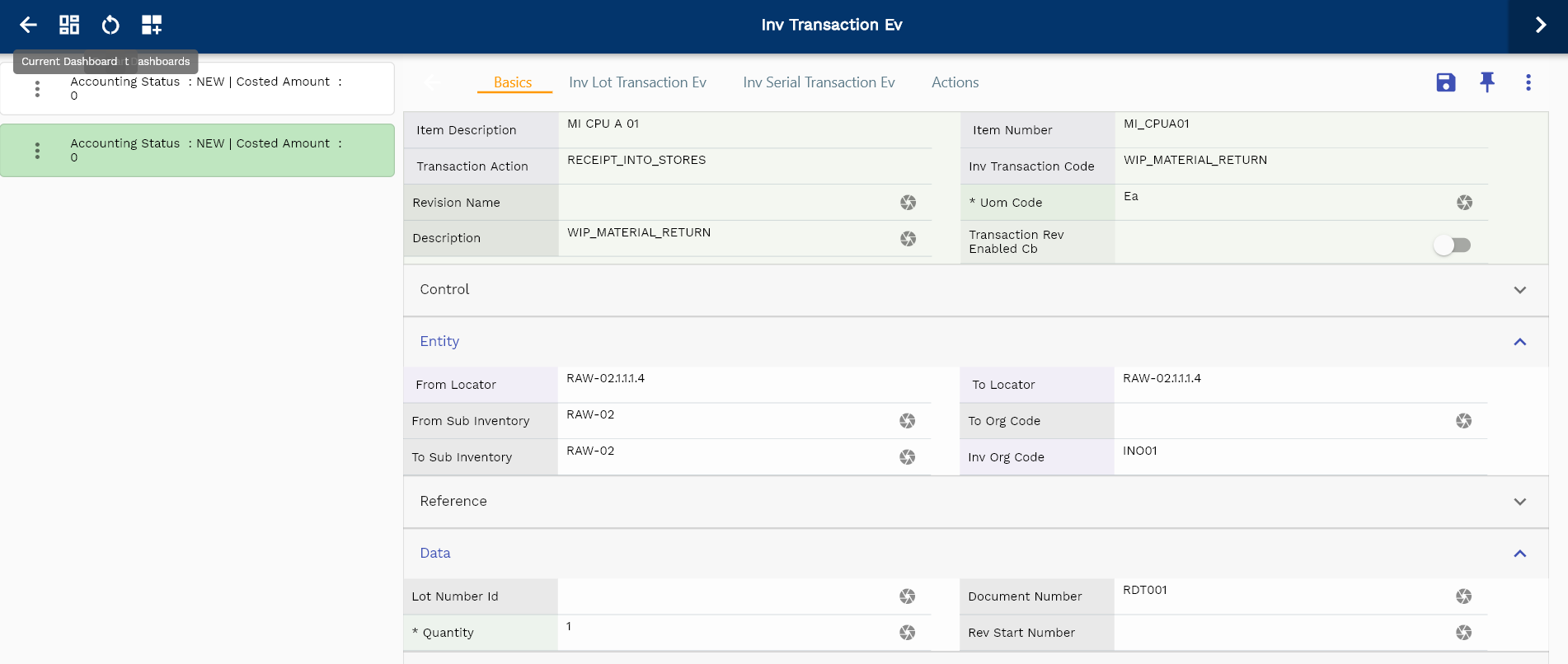
You can create journal entries for the transaction by navigating to the action tab. However, it's advisable to schedule the accounting program to run regularly.
Resource Issue
You can use resource issue transactions to track resource usage/consumption in a work order. You can do resource transactions manually or automatically using move transactions. Resource issue increases WIP valuation, and you can set any resource to be auto consumed during move transaction by selecting the charge type to WIP_MOVE.
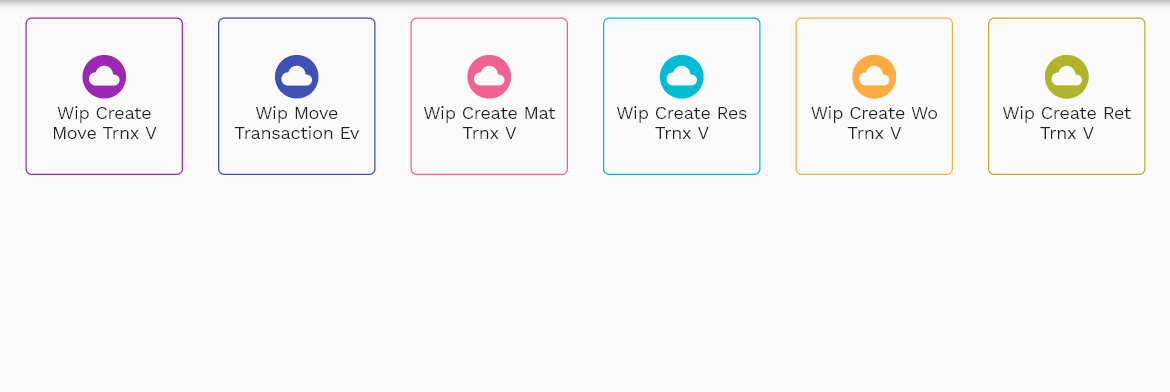
To issue a resource against a work order, navigate to the transaction search screen and then search the work order using the work order number or any other search criteria.
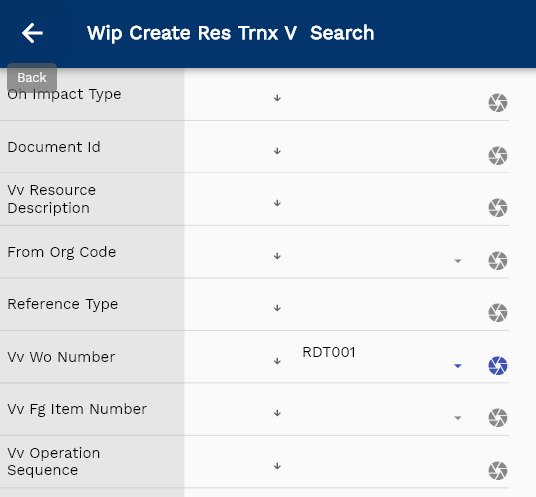
Click on the select icon next to the resource you want to issue.
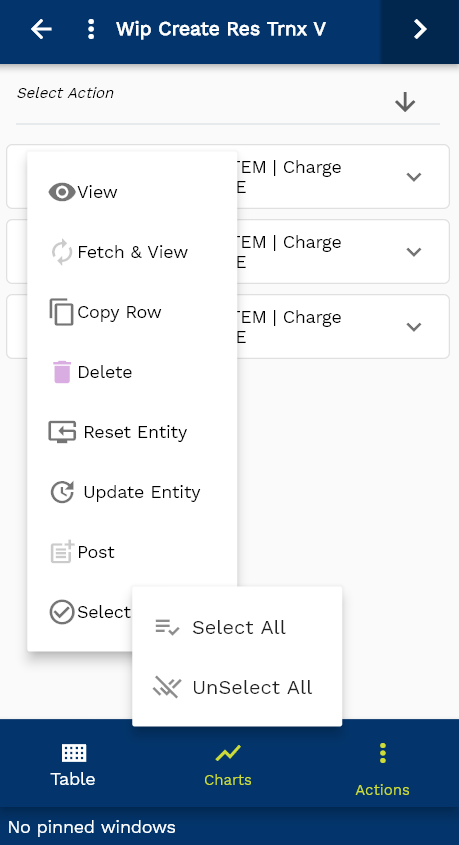
Select "WIP resource Issue" in the action list of values.
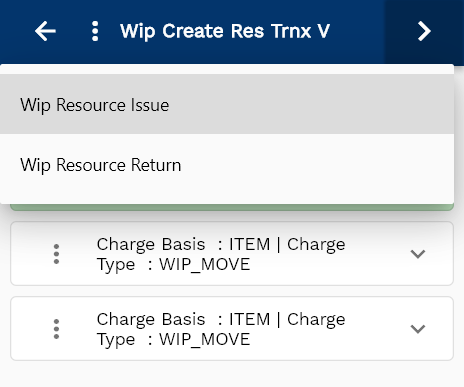
The system will take you to the resource transaction form and show you the details of all the items selected in the previous screen.
Click on the expand button to review the details of the resource.
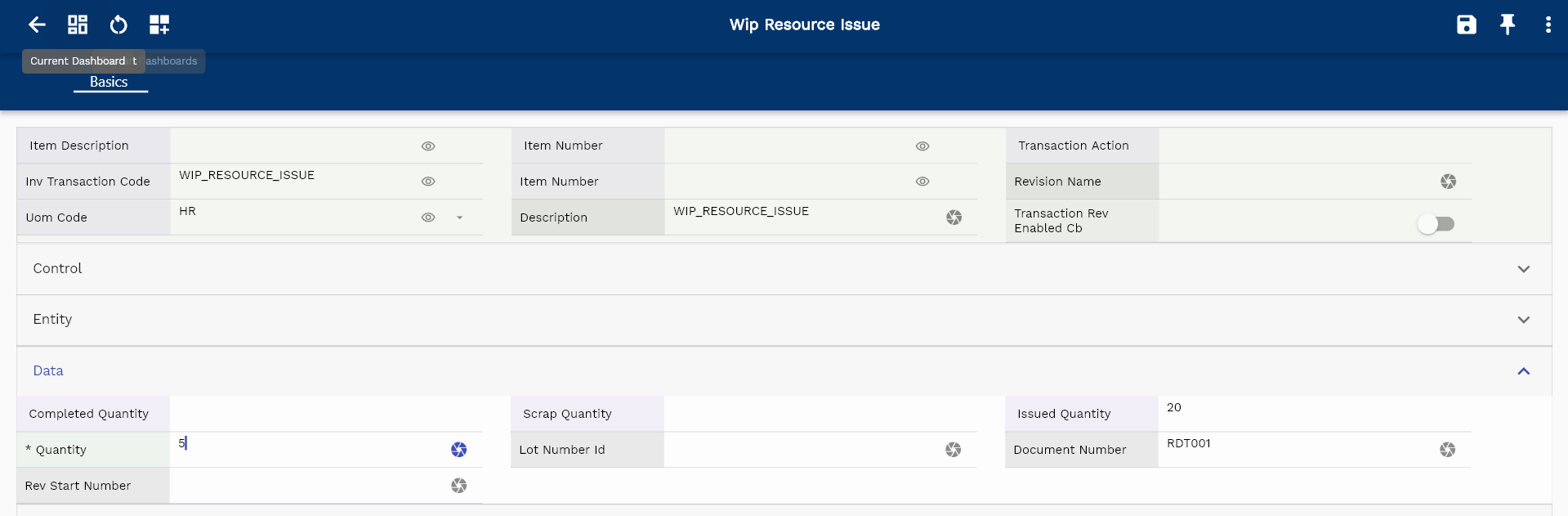
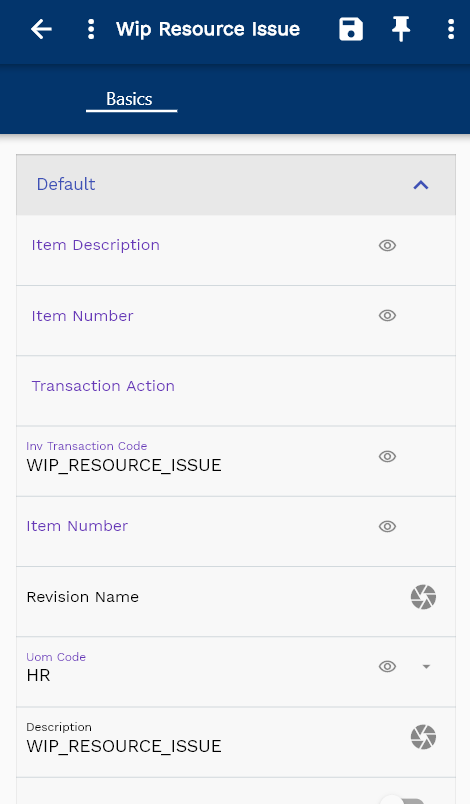
The transaction form rearranges itself depending upon the device screen.
Enter the quantity you want to issue.
The system defaults the quantity field depending on the quantity required and the already issued quantity. However, it also allows you to override the value. You can allocate more/less quantity to a work order as per the actual usage of a resource in a work order.
If you click on the save button without entering all the mandatory fields, the system will show the below error message.
Enter all the other details, and click on the Save button to complete the resource issue transaction.
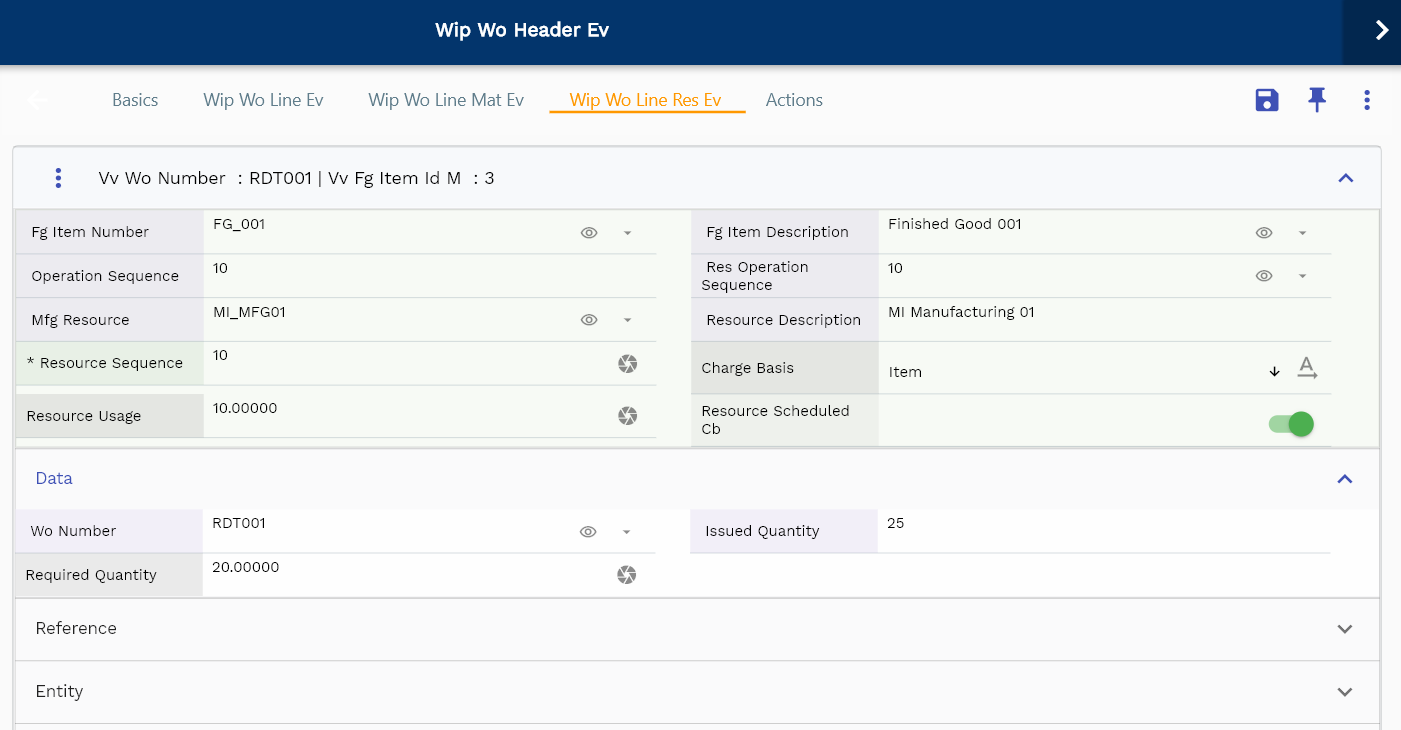
You can review all the completed transactions in the transaction view screen.
Navigate to the transaction search form, enter the work order number or any other criteria to search the transaction
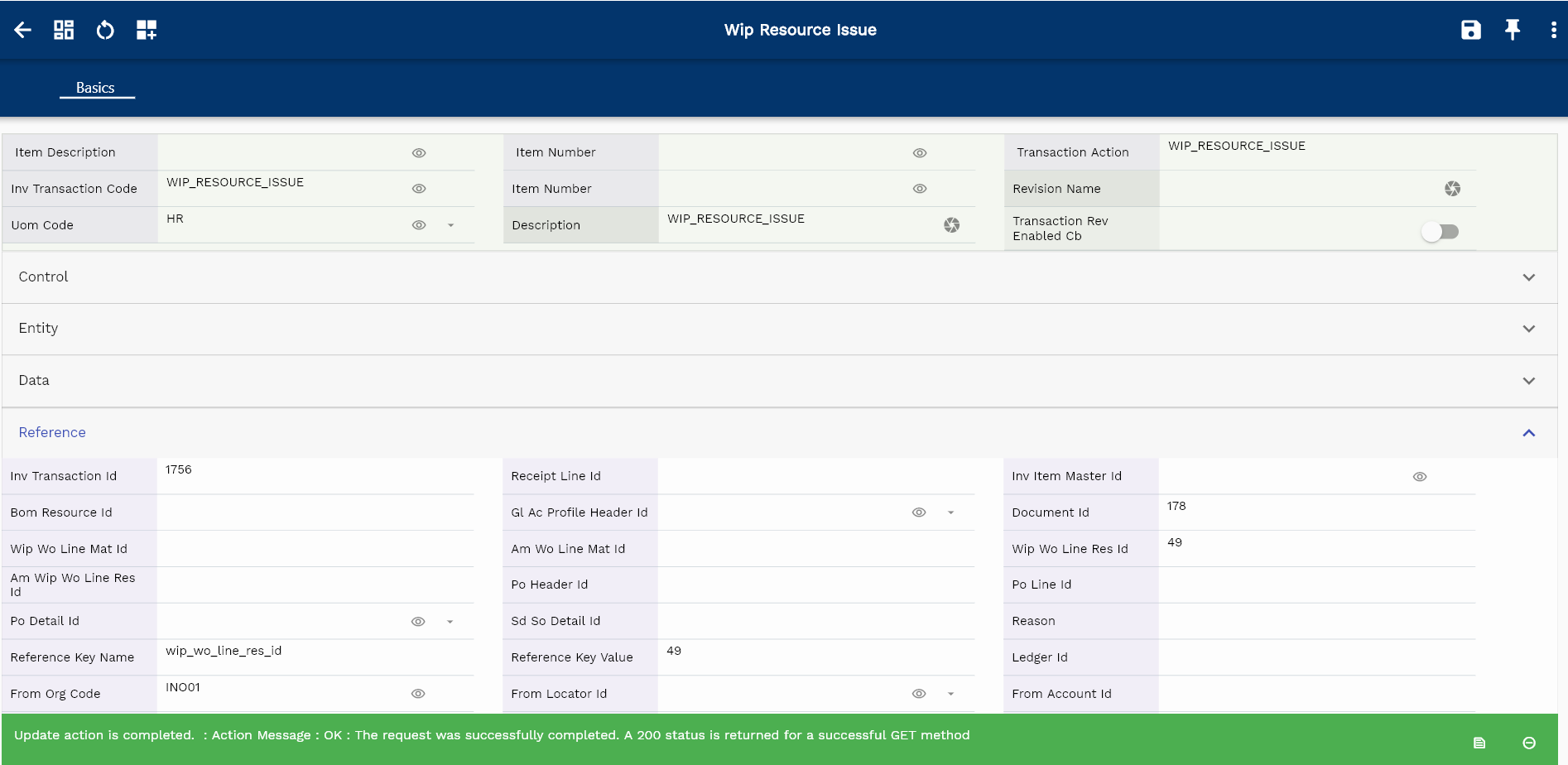
The system will show you the completed transaction.
You can create journal entries for the transaction by navigating to the action tab. However, it's advisable to schedule the accounting program to run regularly.
Resource Return
WIP Resource Return is a reversal transaction for the WIP Resource Issue. The system does not allow you to update any resource transaction. So, to correct any wrong WIP Resource Issue transaction, create a WIP resource return transaction.
To return a resource issued to a work order, navigate to the transaction search screen and then search the work order using the work order number or any other search criteria.
Click on the select icon next to the resource you want to return.
Select "WIP resource Return" in the action list of values
The system will take you to the resource transaction form and show you the details of all the items selected in the previous screen.
Click on the expand button to review the details of the resource.
The transaction form rearranges itself depending upon the device screen.
Enter the quantity you want to return.
The system defaults the quantity field depending on the quantity issued and the already returned quantity. However, it also allows you to override the value.
If you click on the save button without entering all the mandatory fields, the system will show the below error message.
Enter all the other details, and click on the Save button to complete the resource return transaction. You can review all the completed transactions in the transaction view screen.
Navigate to the transaction search form and enter the work order number or other criteria to search the transaction.
The system will show you the completed transaction.
You can create journal entries for the transaction by navigating to the action tab. However, it's advisable to schedule the accounting program to run regularly.
Move Transaction
Move transaction is an optional transaction that you can incorporate in your business process to simplify and streamline the manufacturing operation. Move transactions help businesses to track the exact status of a work order. It allows companies to track the completion percentage of a work order in each routing step.
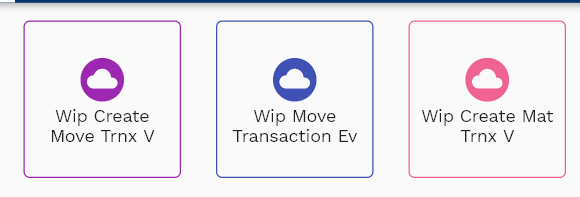
You can move the assemblies from one operation step to another operation step in the same operation or in a different operation. The system allows you to move assemblies forward and backward within and between operations. You can backflush materials and automatically consume resources by moving material from a lower operation to a higher one. When you move from a higher operation to a lower operation, the system automatically reverses the material and resource consumption.
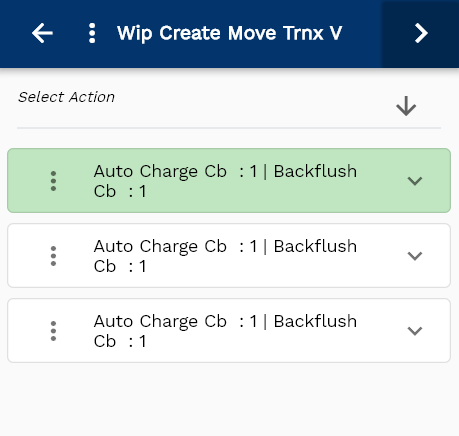
To create a move transaction a work order, navigate to the transaction search screen and then search the work order using the work order number or any other search criteria.

Click on the select icon next to the operation you want to transact.
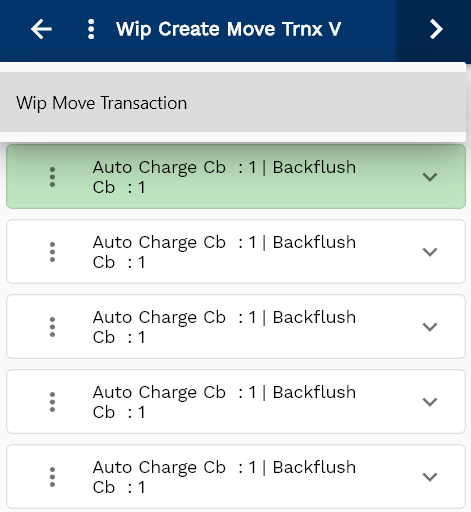
Select "WIP Move Transaction" in the action list of values
The system will take you to the move transaction form and show you the details of all the operations selected in the previous screen.
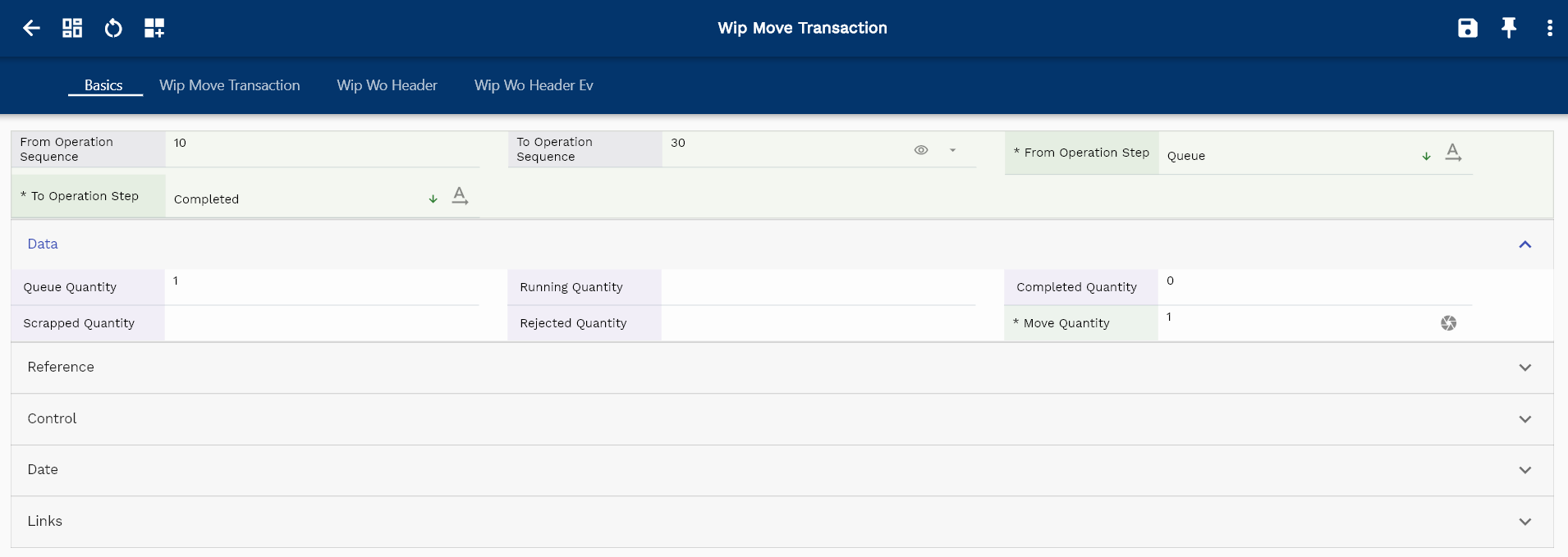
Select/Enter the below details
- From Operation Step
- To Operation Sequence
- To Operation Step
- Move Quantity
The move quantity must be less than equal to the available quantity (sum of all the quantities available in the from operation step)
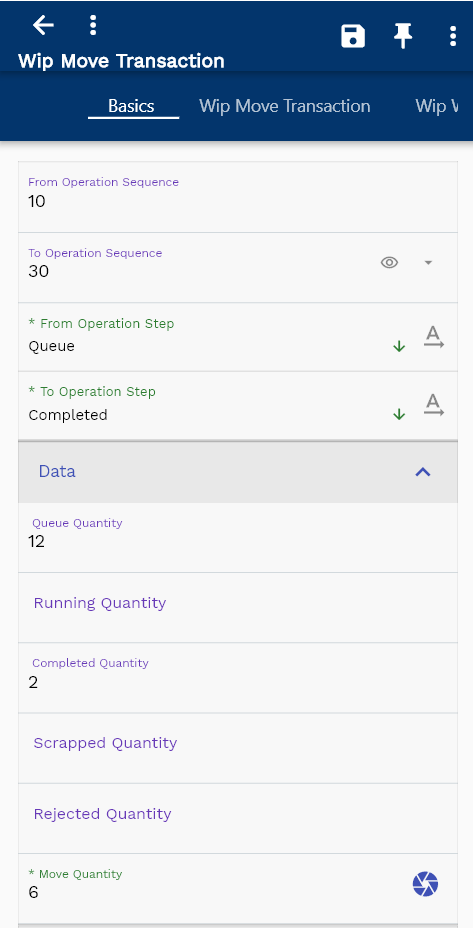
Click on the expand button to review the details of the operation.
The transaction form rearranges itself depending upon the device screen.
Enter all the other details, and click on the Save button to complete the material issue transaction.
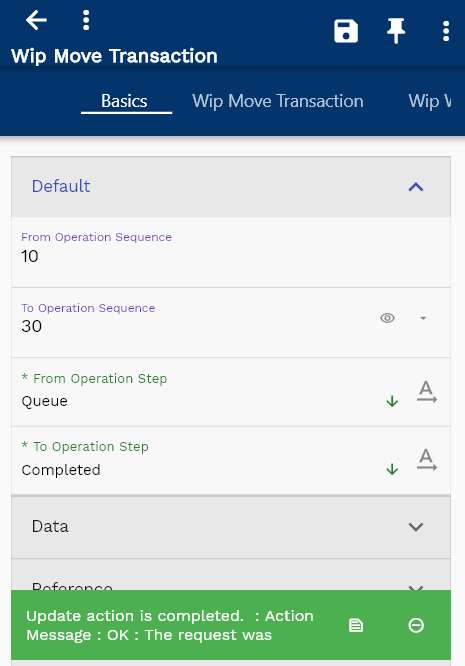
You can review all the completed transactions in the transaction view screen.
Navigate to the transaction search form and enter the work order number or other criteria to search the transaction.
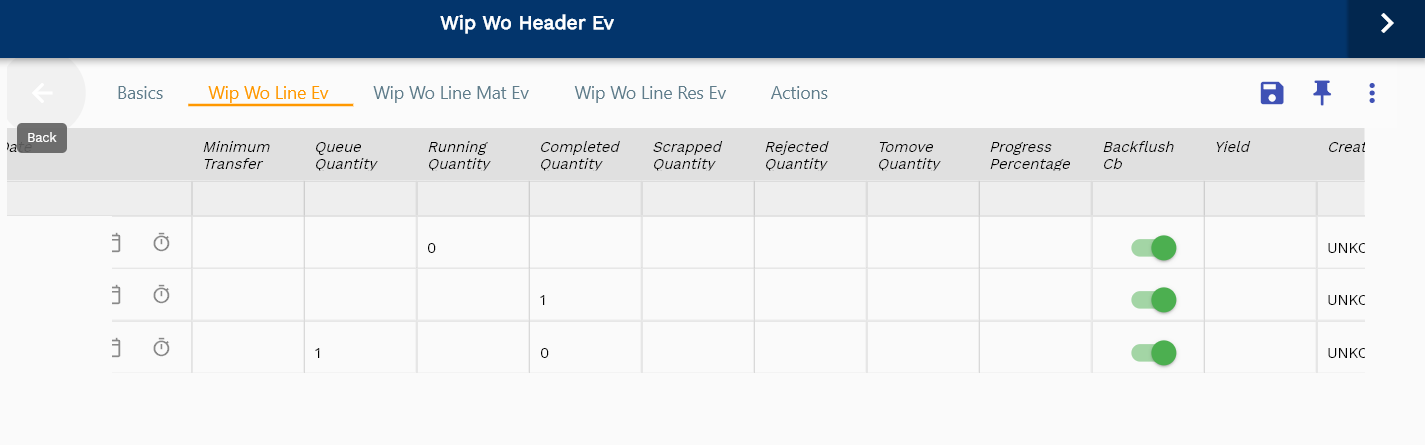
You can also review the move transaction details in the move transaction form and the corresponding material/resource transactions in the inventory transaction form.
//TODO reference of move transaction number on inventory transaction
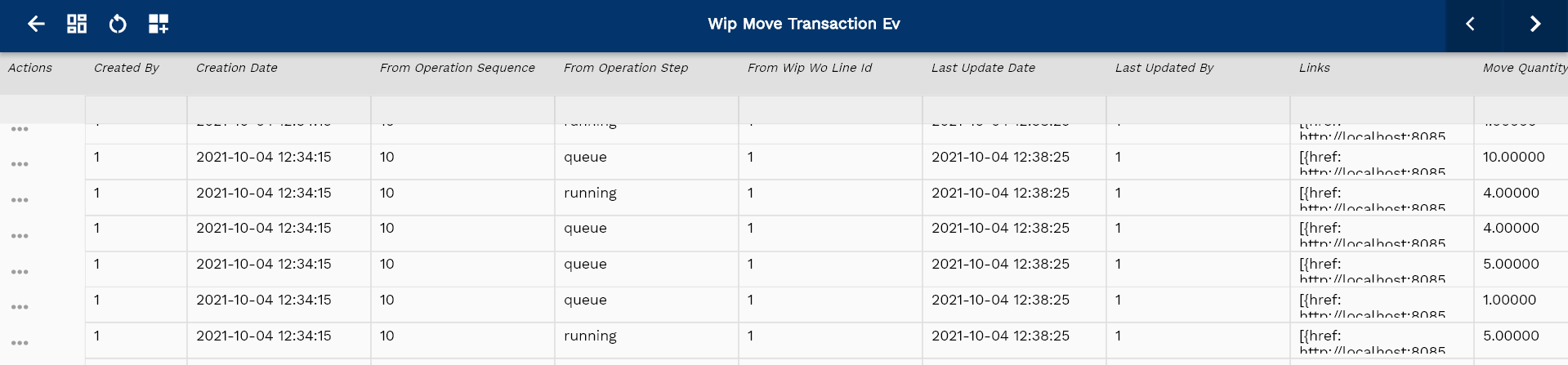
Assembly Completion
Assembly Completion transaction maps the physical completion of an item (Assembly/Sub-Assembly) at the end of a manufacturing process.
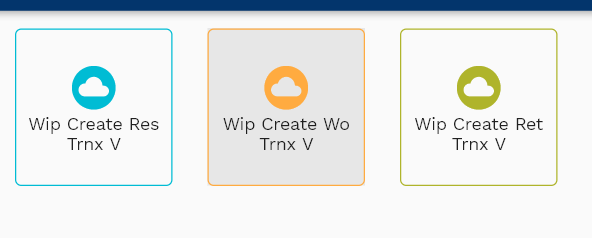
Create a WIP Assembly Completion to receive completed assemblies into inventory from a work order. BOM components with a supply type of Assembly Pull are automatically issued when you complete a work order. Assembly Completion increases inventory on-hand for the assembly and reduces WIP valuation.
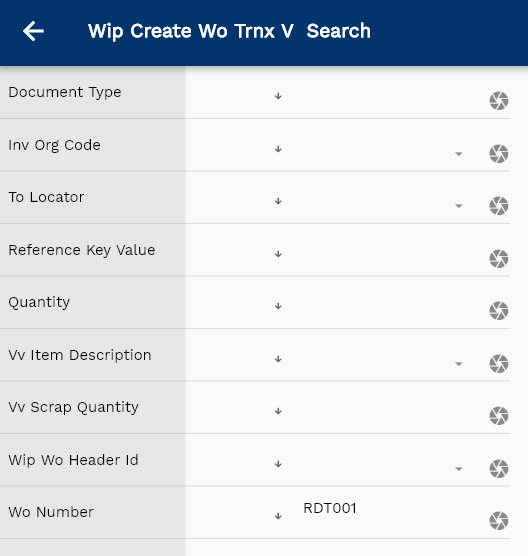
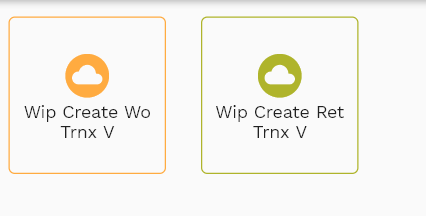
To create a work order completion transaction, navigate to the transaction search screen and then search the work order using the work order number or any other search criteria.
Click on the select icon next to the work order you want to transact.
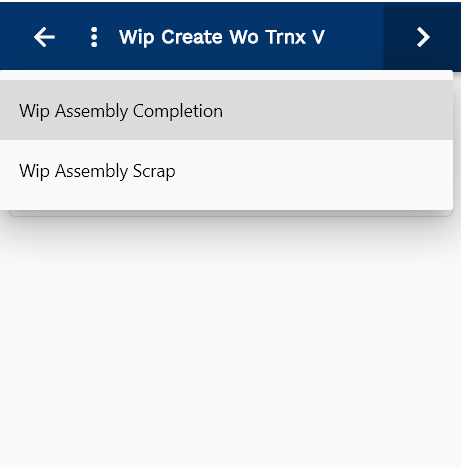
Select "WIP completion Transaction" in the action list of values
The system will take you to the completion transaction form and show you the work order details selected in the previous screen.
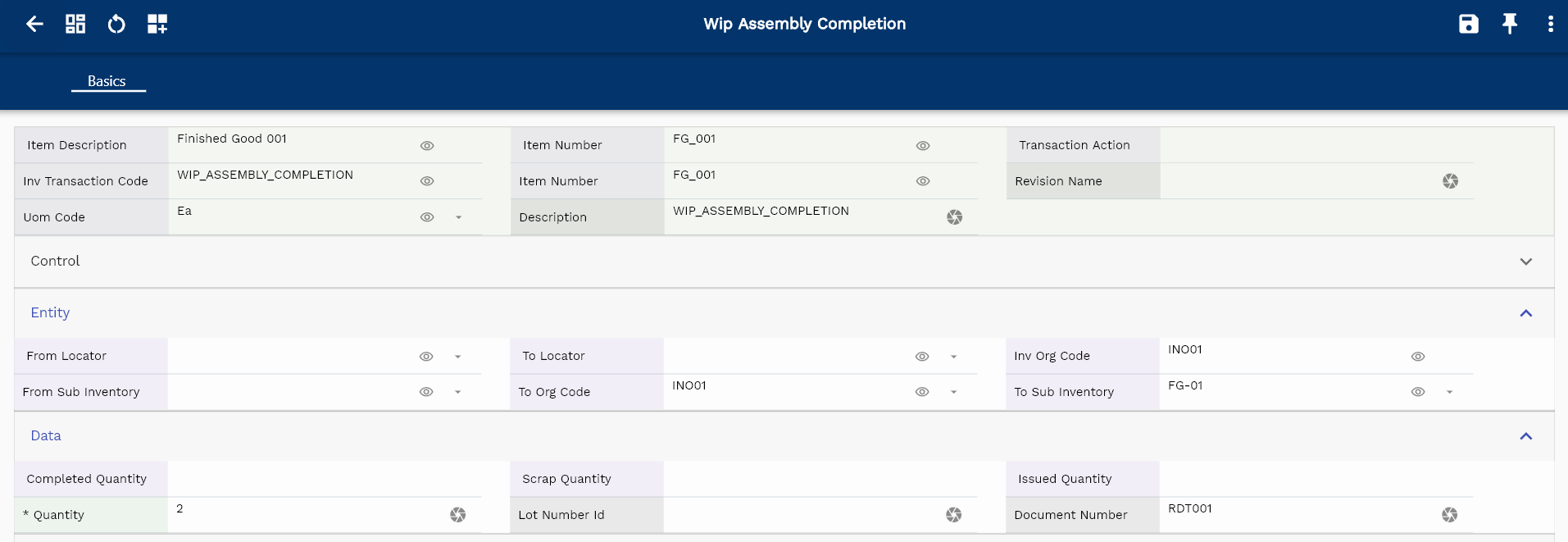
Select/Enter the below details
- To Sub Inventory
- To Locator
- Quantity
The completion quantity must be less than equal to the available quantity (total work order quantity - the sum of all completed quantities)
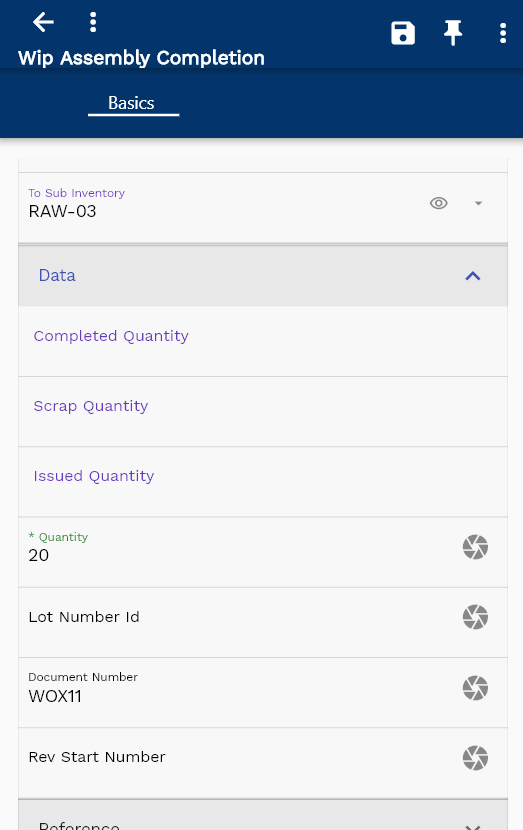
Click on the expand button to review the details of the work order.
The transaction form rearranges itself depending upon the device screen.
Enter all the other details, and click on the Save button to complete the assembly completion transaction.
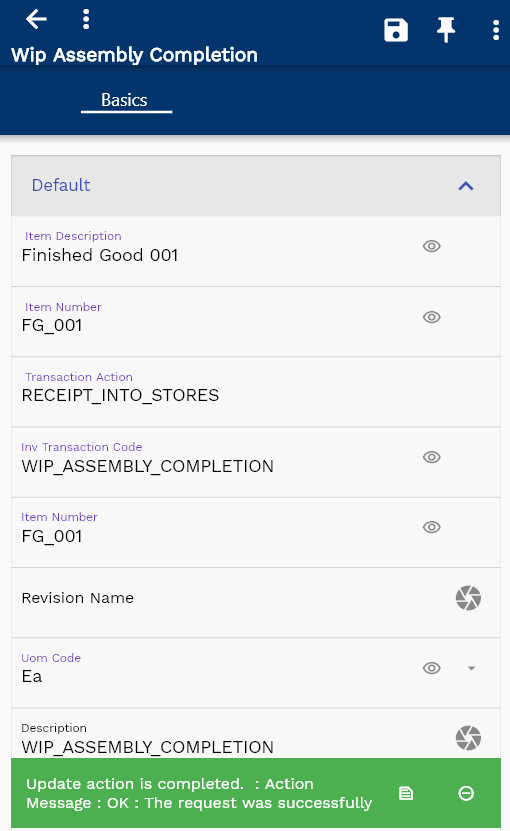
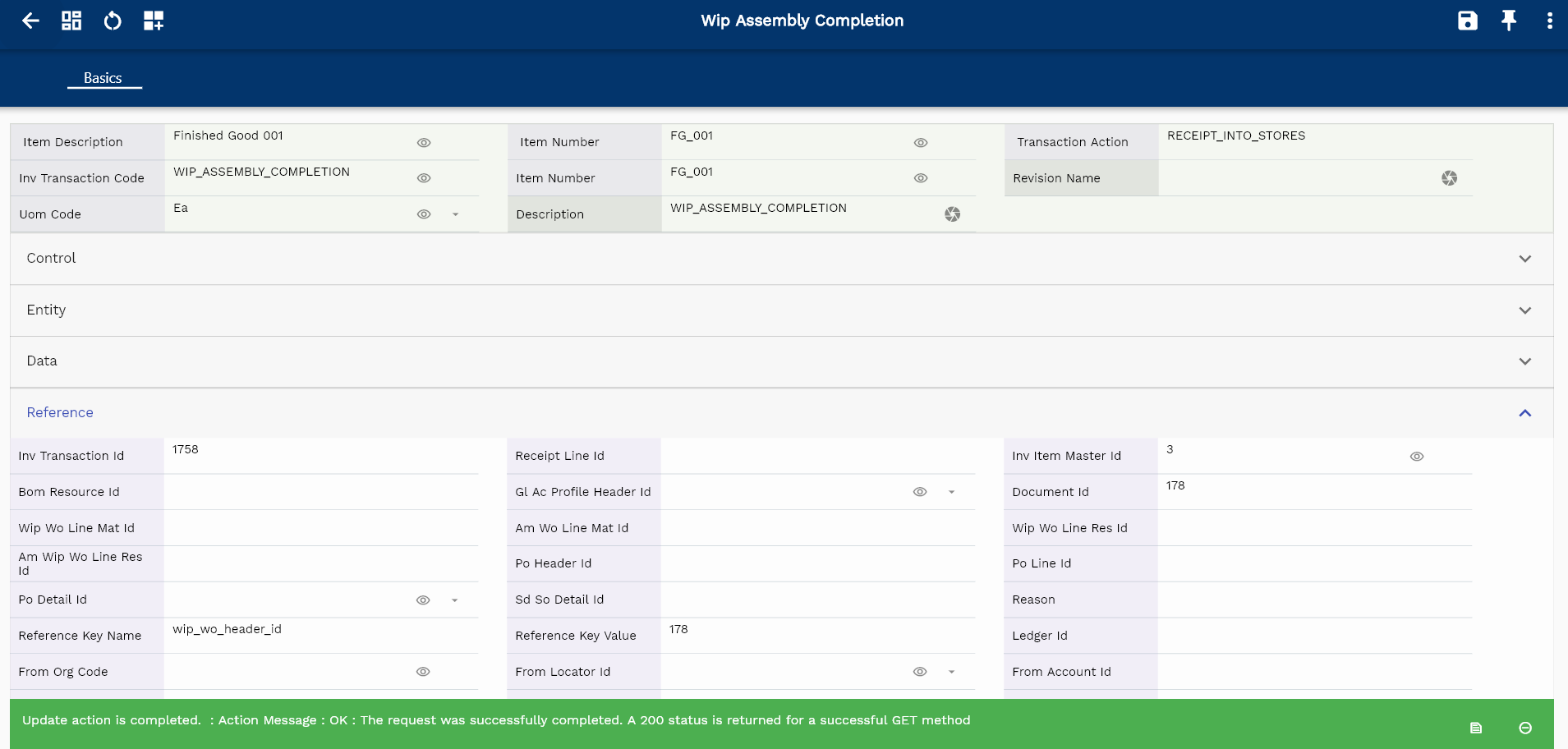
You can review all the completed transactions in the transaction view screen.
Navigate to the transaction search form and enter the work order number or other criteria to search the transaction.
Assembly Return
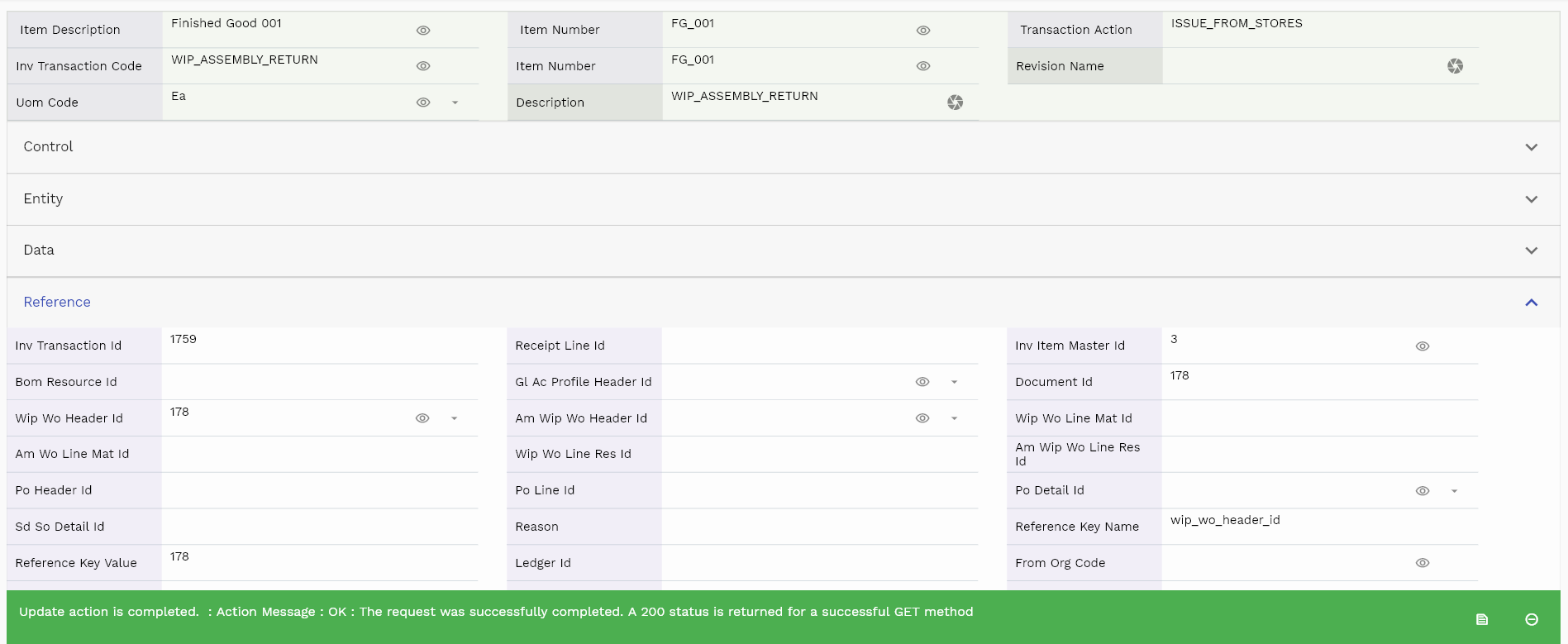
WIP Assembly Return is a reversal transaction for WIP Assembly Completion. The system does not allow you to update any Assembly Completion transaction.
So, to correct any wrong WIP Assembly Completion transaction, create a WIP Assembly Return transaction. This transaction returns completed assemblies from inventory back to work orders. The system moves all the assembly pull components to the inventory from the work order. Assembly Return reduces inventory on hand for the assembly and increases WIP valuation.
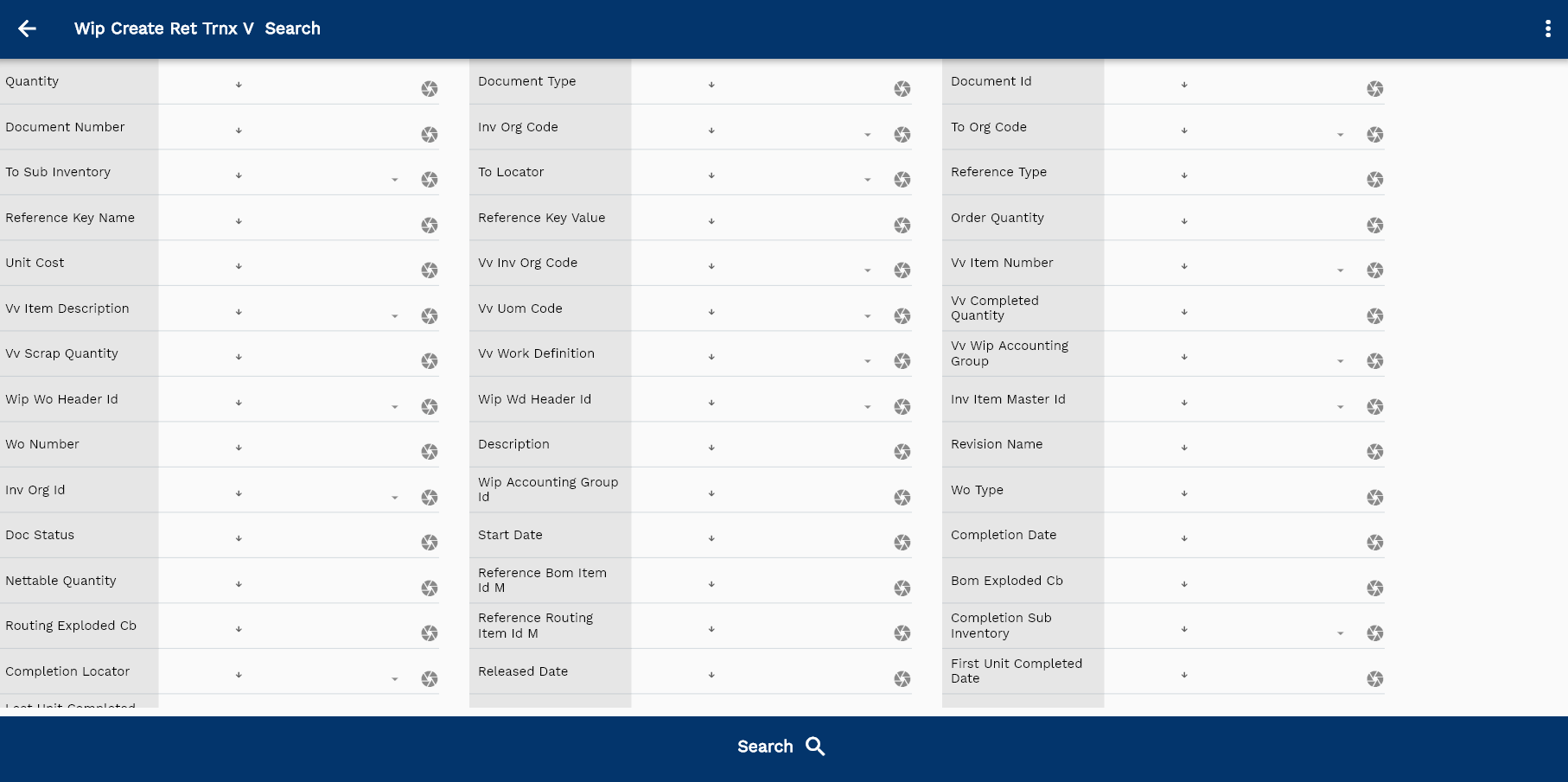
To create a Return transaction against a completed work order, navigate to the transaction search screen and then search the work order using the work order number or any other search criteria.
Click on the select icon next to the work order you want to transact.
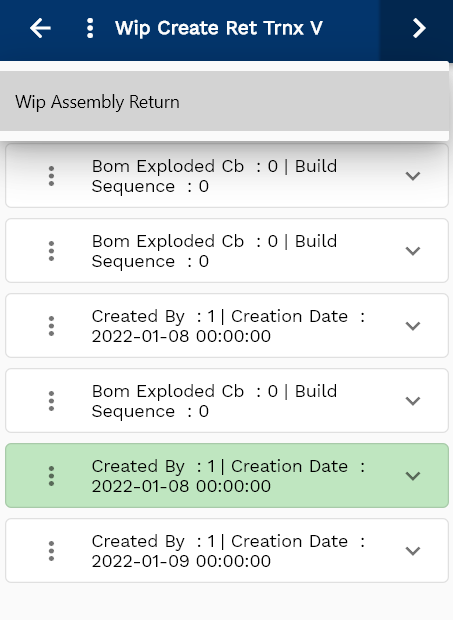
Select "WIP Return Transaction" in the action list of values
The system will take you to the Return transaction form and show you the work order details selected in the previous screen.
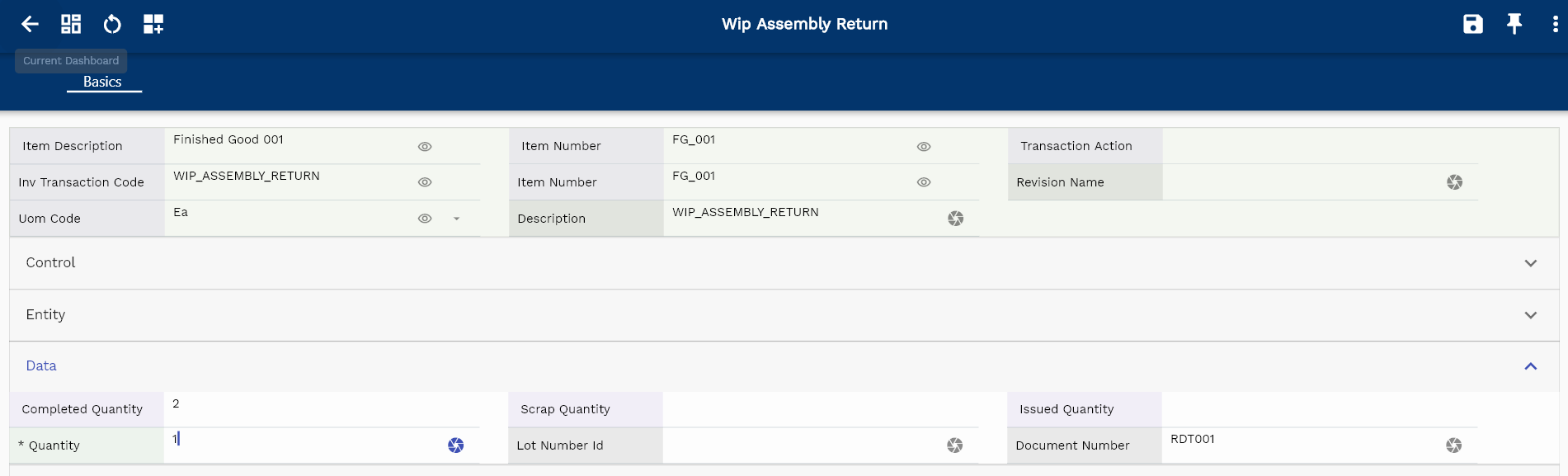
Select/Enter the below details
- From Sub Inventory
- From Locator
- Quantity
The Return quantity must be less than equal to the available quantity (sum of all completed quantities)
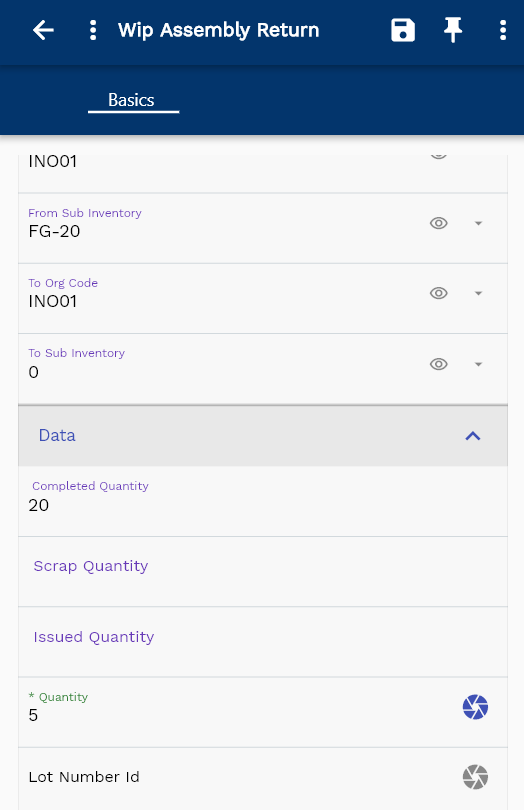
Click on the expand button to review the details of the work order.
The transaction form rearranges itself depending upon the device screen.
Enter all the other details, and click on the Save button to complete the Assembly return transaction.
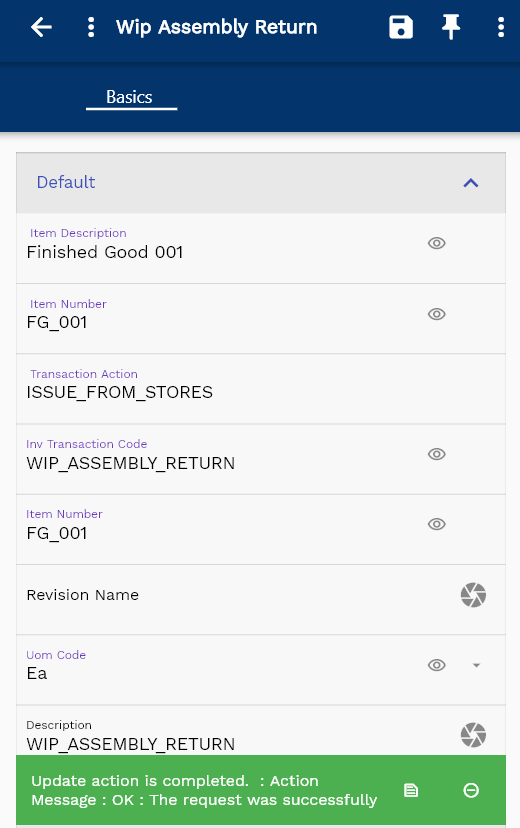
You can review all the returned transactions in the transaction view screen.
Navigate to the transaction search form and enter the work order number or other criteria to search the transaction.